TallyLights OBS Controller Installation (Mac)
December 06, 2022
OBS Controller Installation (Mac)
- Use the included USB A-B cable to connect the TallyLights Controller to your computer.
- Download and extract the OBS TallyLights Controller plugin.
- Open a New Finder window and open the OBS Plugins folder.
- Open the Applications folder and find the OBS.app file.
- Right click on this application and select Show Package Contents.
- Browse this folder to Contents\Resources\obs-plugins.
- Copy the OBS TallyLightsâ„¢ Controller plugin files to the OBS Plugins folder. These files are:
- TallyLights.lua
- TallyLightsUSB
OBS Controller Configuration
- Go to your Applications Folder and select "Show in Finder".
- From there, find the OBS app and right click (CTRL+click) on OBS and select
Show Package Contents > Contents > Plugins.
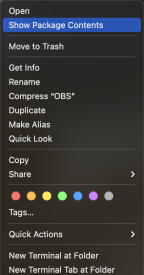

- Copy the included files to the "PlugIns" folder for the OBS Studio application.
The files to be copied are:
- Tally-Lights.lua
- TallyLightUSB
- For all sources currently added in OBS Studio, there will be a tally assignment item added.
Please Note: If you have recently added Sources and they are not displayed, click the Refresh button on the script to reload it. A script dialog box may appear, but you can just close it. The new
sources should now be visible.

- Assign Sources to a tally light. For example, the first source Image "1" can be mapped to tally light 1 by setting its value to "1".
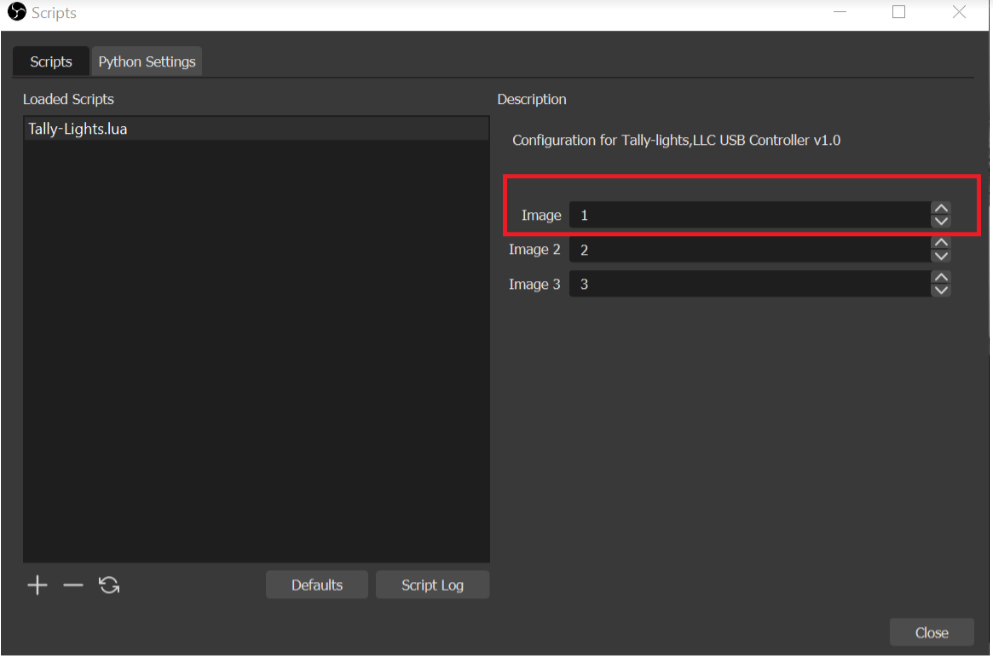
Please Note: Multiple sources can be mapped to the same tally light. For best results, use a separate Scene for each camera feed.