Accessing Horizon
How to Activate Horizon & Voice Tracking (Online)
Overview
This article walks you through activating the Horizon interface on your PTZOptics camera using the online activation method. This process requires an internet connection and a PTZOptics Community account.
Prerequisites
- Your camera must be on the latest firmware before proceeding.
- You must have a PTZOptics Community account. If you don't have one, create one at community.ptzoptics.com before starting.
- Your camera must be connected to the internet for online activation.
- You'll need the camera's IP address on hand.
Step-by-Step Instructions
Step 1 — Open the Activation Page
In a web browser, type your camera's IP address followed by /update and press Enter.
Example:
192.168.100.88/update
Step 2 — Start Online Activation
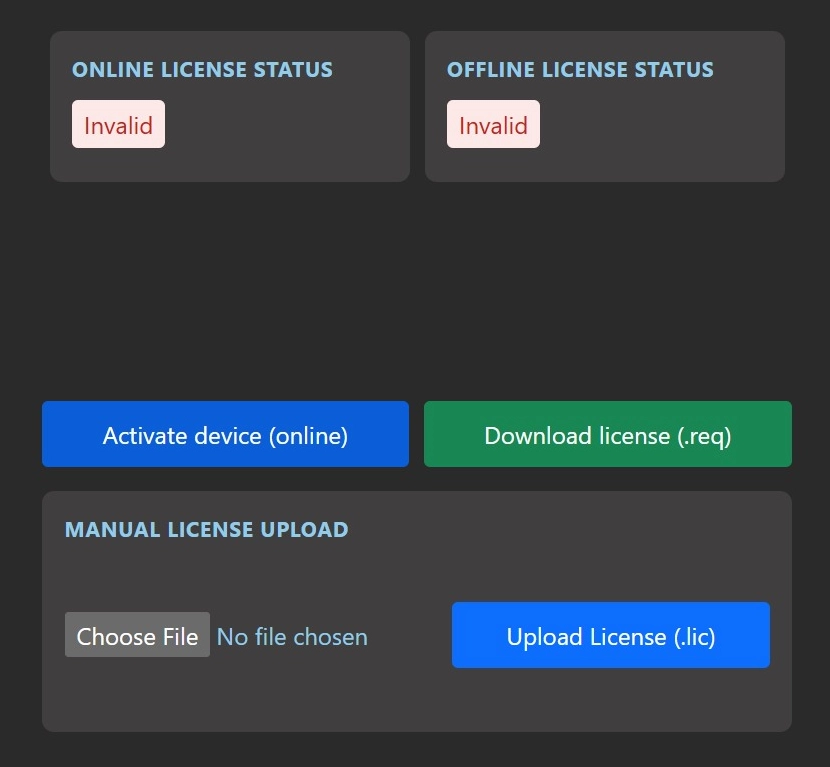
On the updater page, click "Activate device (online)".
Step 3 — Sign In with Single Sign On
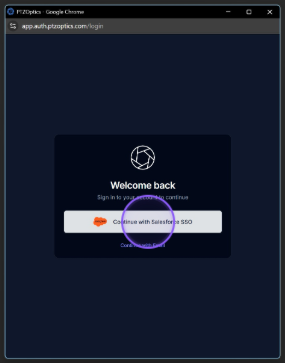
This step registers your camera and applies a license file, enabling Horizon and Voice Tracking to work both online and offline going forward.
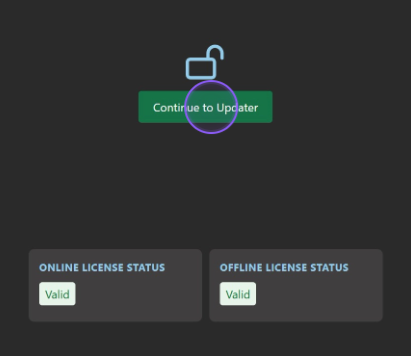
Step 4 — Verify License Validation
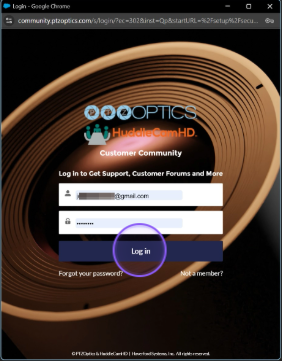
Note: The Offline license may validate before the Online license. If this happens, you can proceed to the next step — the Online license will validate shortly after.
Step 5 — Continue to the Updater
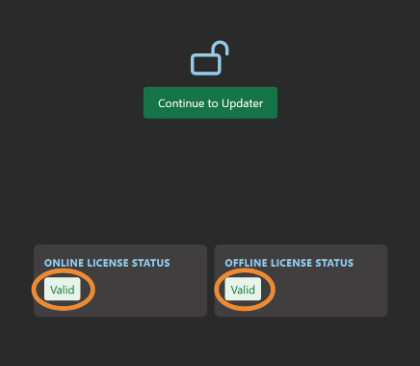
Once the licenses are validated, click "Continue to Updater".
Step 6 — Download and Install Horizon & Voice Tracking\
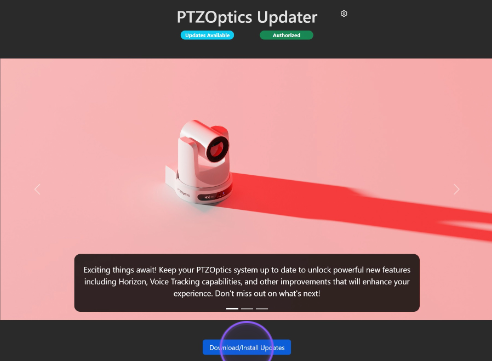
Click "Download/Install Updates" to install Horizon and Voice Tracking onto the camera.
This process typically takes 3–5 minutes. The camera will automatically reboot when complete.
Step 7 — Open the Horizon Interface
After the camera reboots, navigate to your camera's IP address followed by /beta in your browser.
Example:
192.168.100.88/beta
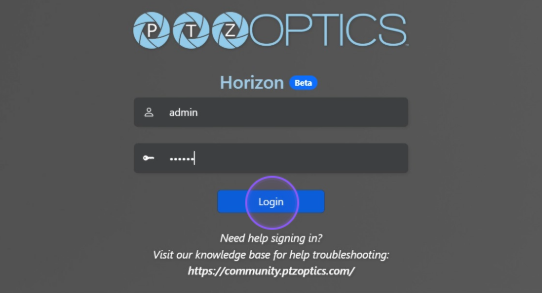
Step 8 — Log In to Horizon
Last updated: February 2026